Entry Paths in ServiceReef provide a structured, customizable process for guiding individuals through onboarding steps such as registration, assessments, coach matching, and more. This feature helps organizations standardize data collection, streamline engagement, and create a consistent experience across programs or roles.
What Is an Entry Path?
An Entry Path is a configurable onboarding flow that walks a user through a series of steps during registration or engagement. Each path can include forms, profile questions, assessments, and coach matching steps tailored to your organization’s needs.
Each Entry Path supports multiple customizable steps (e.g., interests, member questions, assessments) and allows steps to be defined as required, optional, or hidden.
Where to Access and Manage Entry Paths
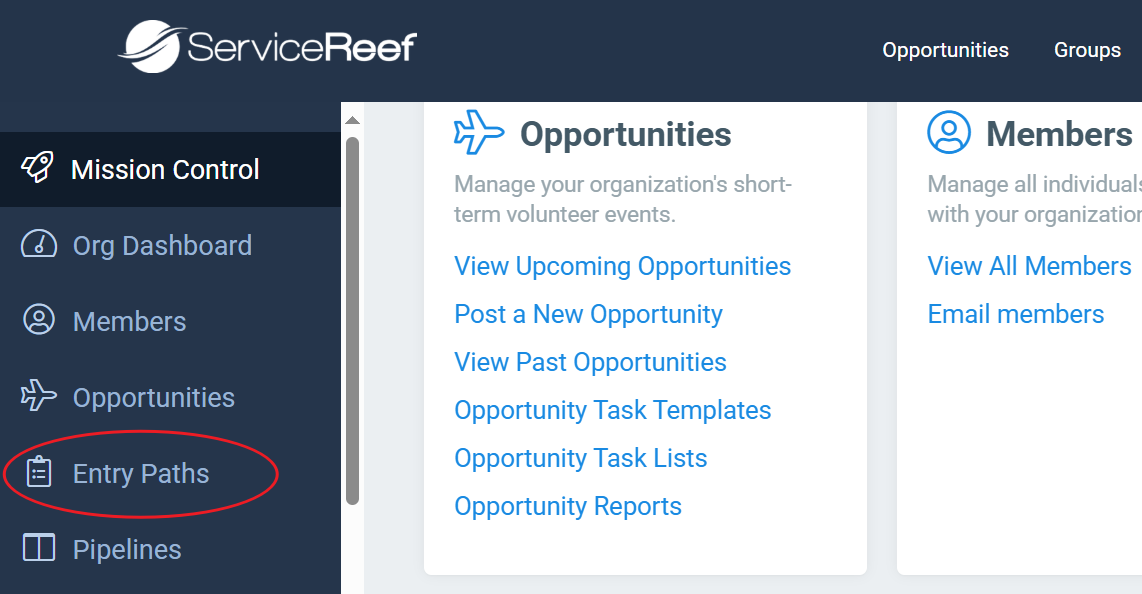
Mission Control >Entry Paths
From here, you can create new Entry Paths or edit existing ones.
Entry Paths may not be available on all subscription plans. To add this feature, please contact us at ServiceReef Support.
Creating an Entry Path
To create a new Entry Path, click the Add New Entry Path button.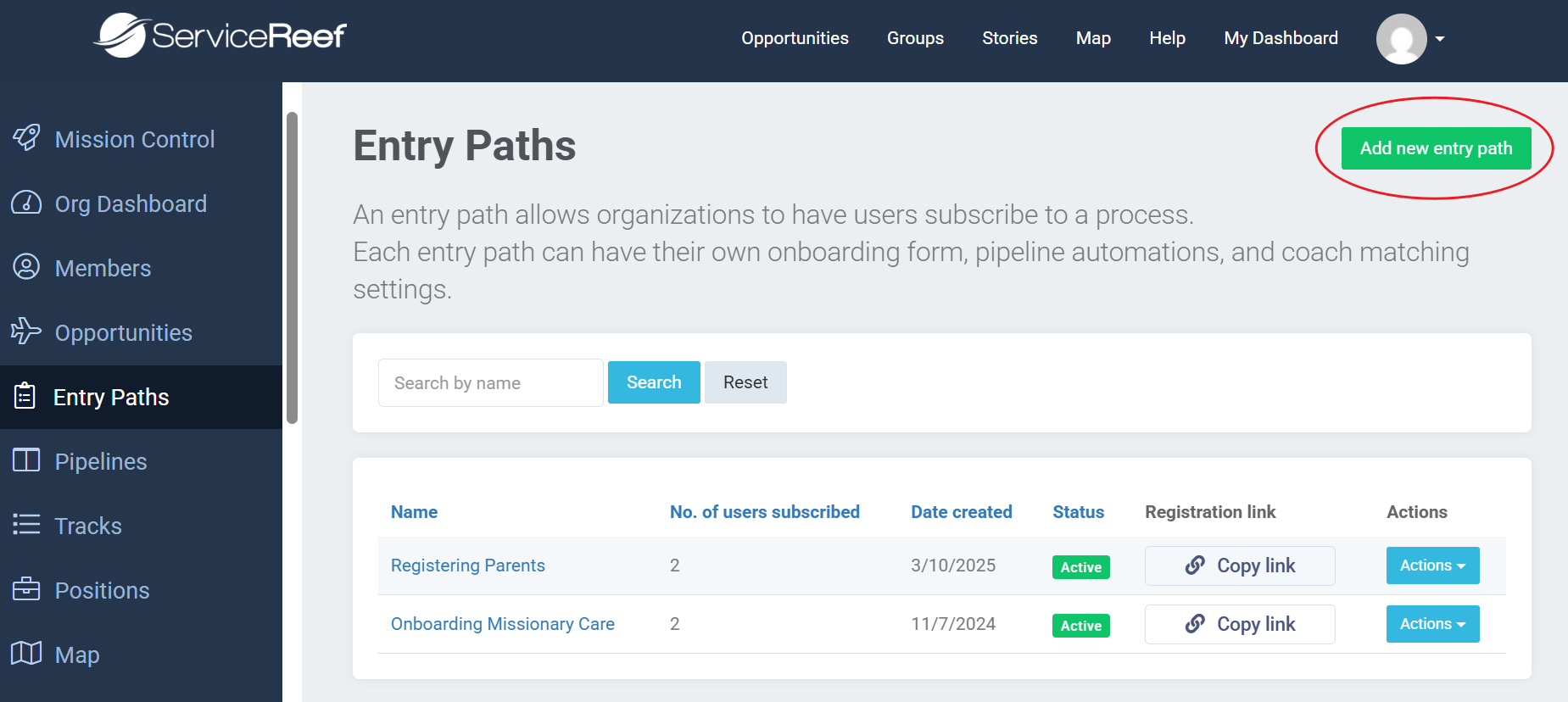
When creating a new Entry Path, you’ll move through the several set up sections to configure your Entry Path.
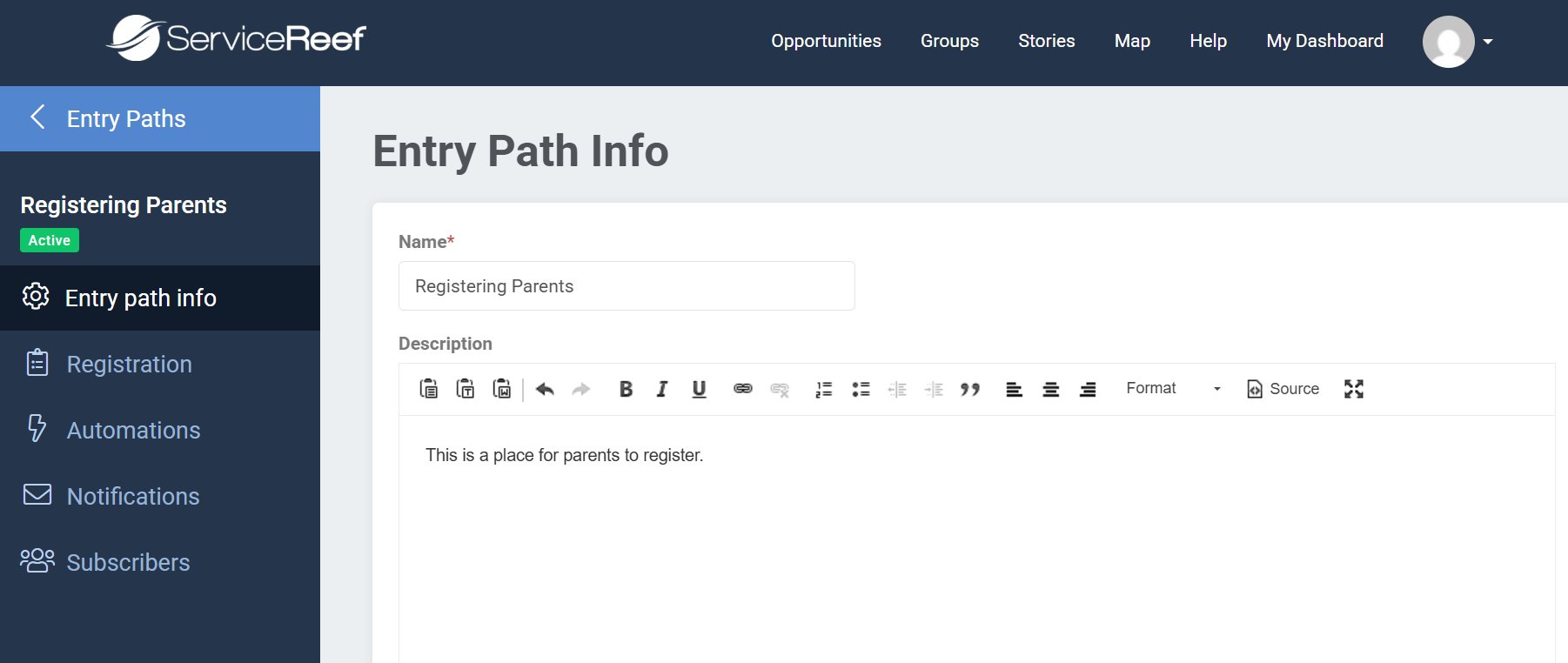
Step 1: Entry Path Info
- Define a name and description for the Entry Path.
- Include any introductory text or instructions for users.
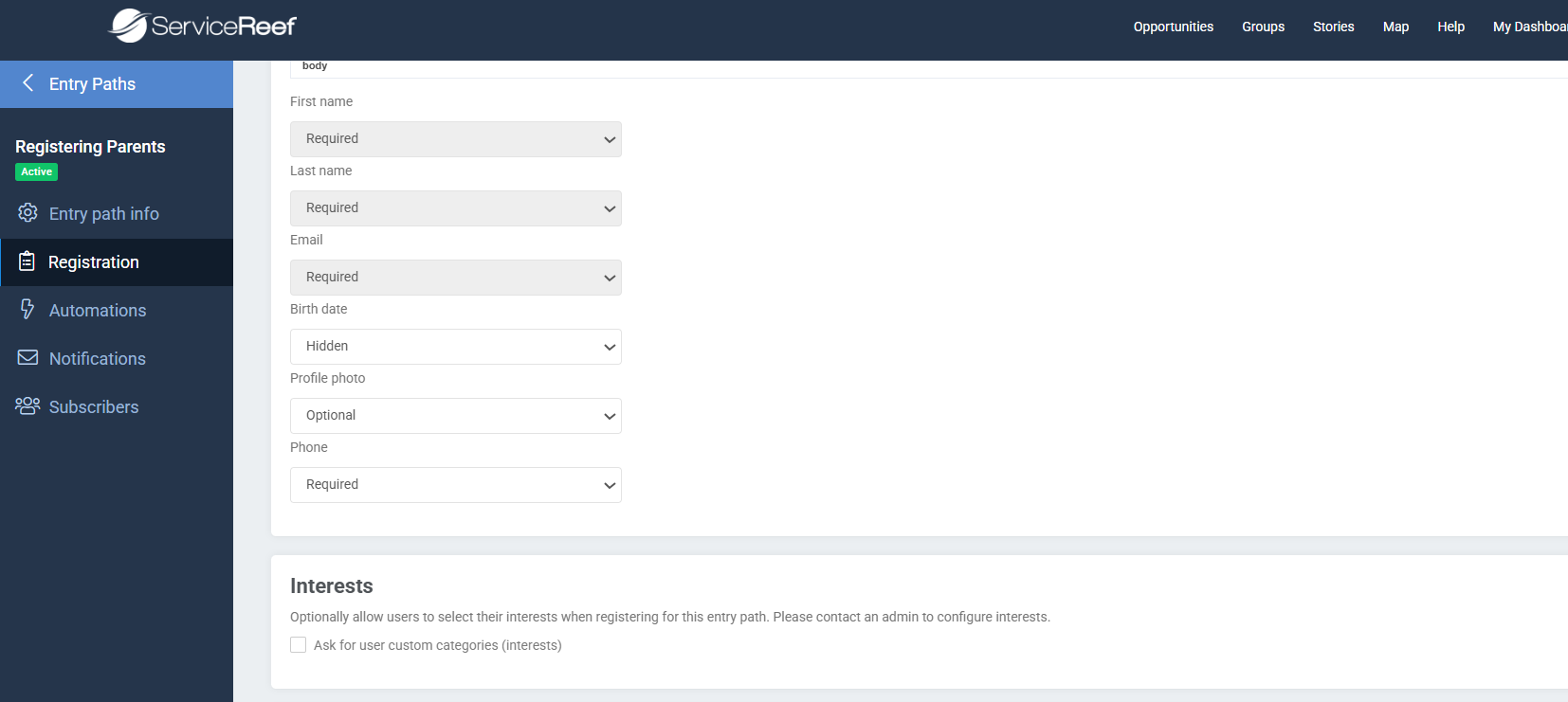
Step 2: Registration Process
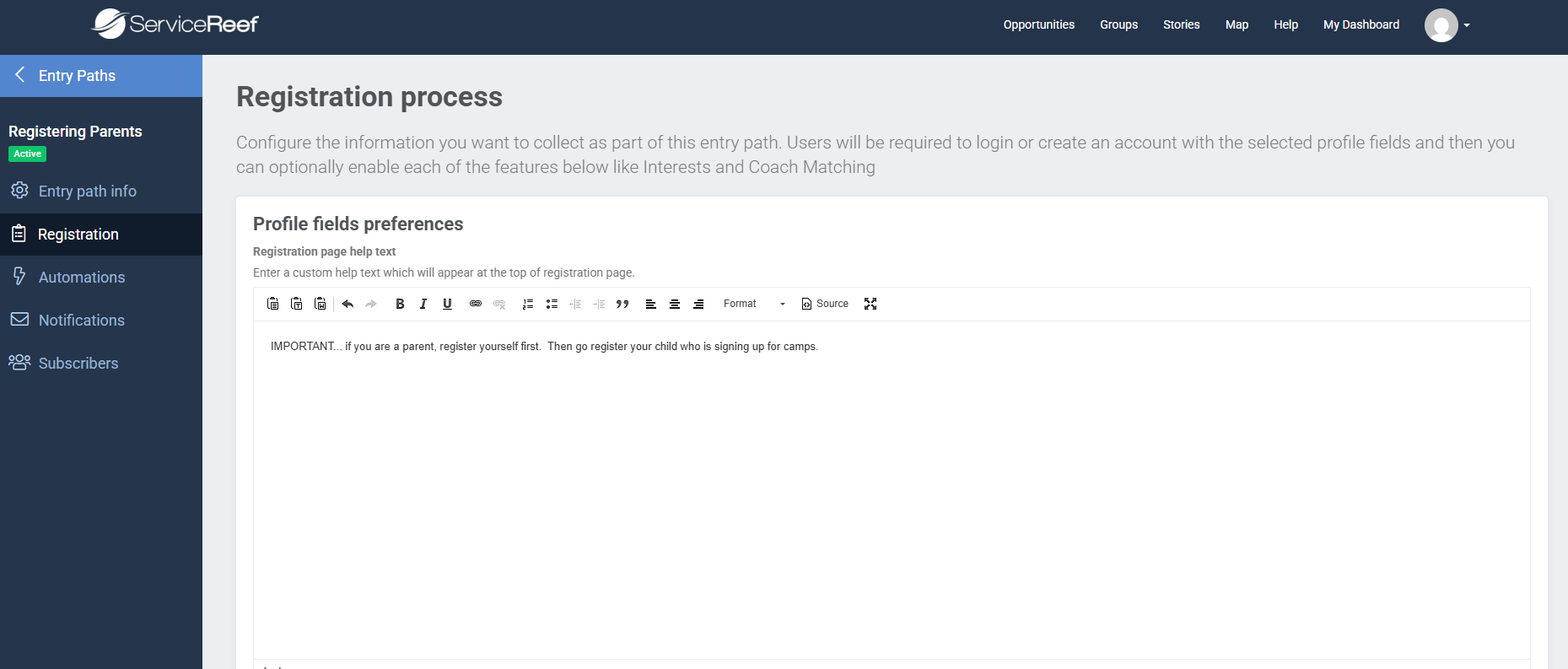
Define which steps users must complete. Each step can be set as required, optional, or hidden. Available configurations include:
- Registration page help text: Display custom instructions at the top of the registration page.
- Profile fields: Name and email are always required. You can also choose to collect birth date, profile photo, or phone number.
- Interests: Allow users to select from a predefined list of tags.
- Member Questions: Add existing organization-level questions.
- Assessment: Attach a user assessment (configured separately).
- Coach Matching: Enable coach selection and request functionality.
- Destination: Choose a redirect destination (dashboard or custom page).
 Registration Process Set Up |
Registration Process Set Up Continued |
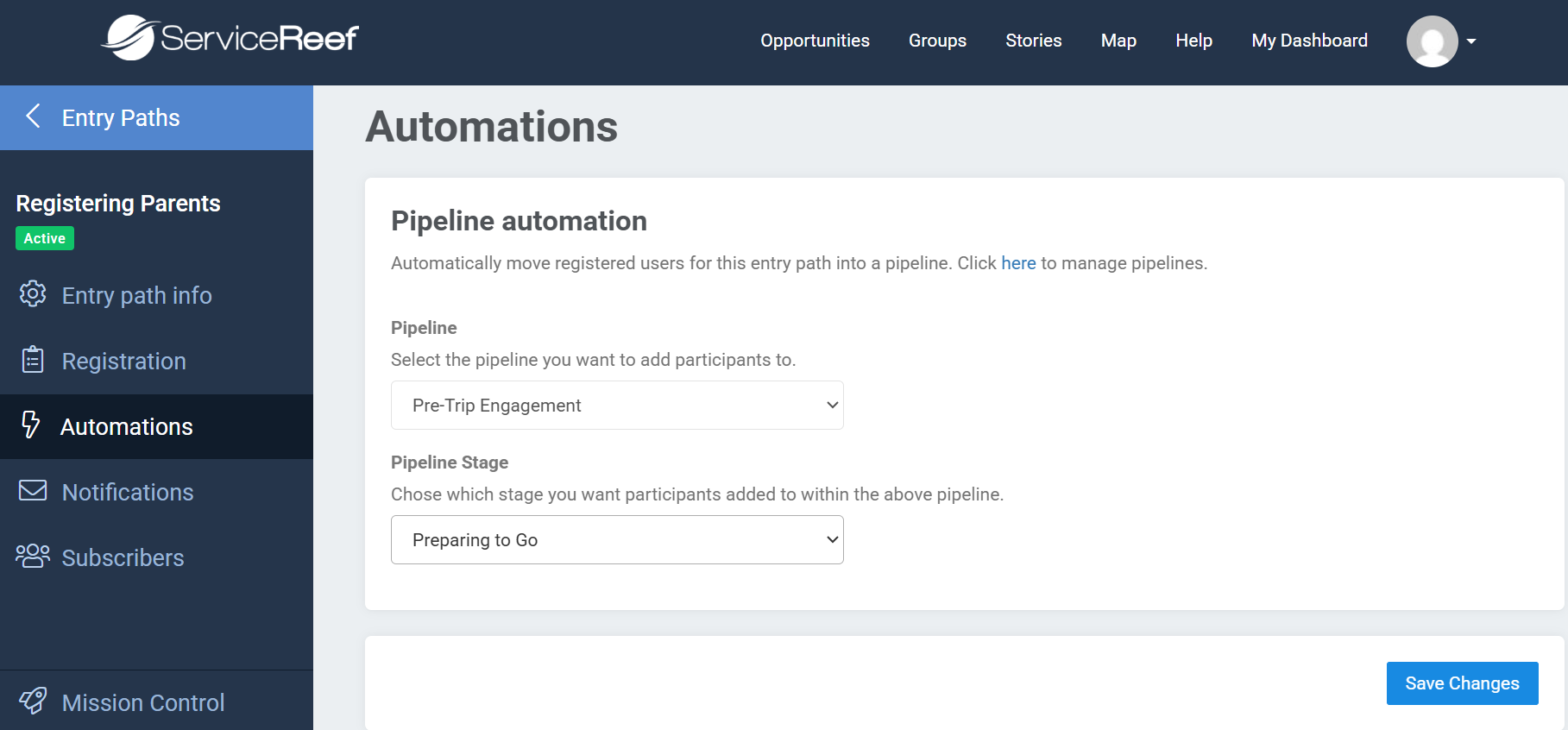
Step 3: Automations
Automations trigger once an Entry Path is completed. You can:
- Assign the user to a specific pipeline.
- Specify the stage within that pipeline.
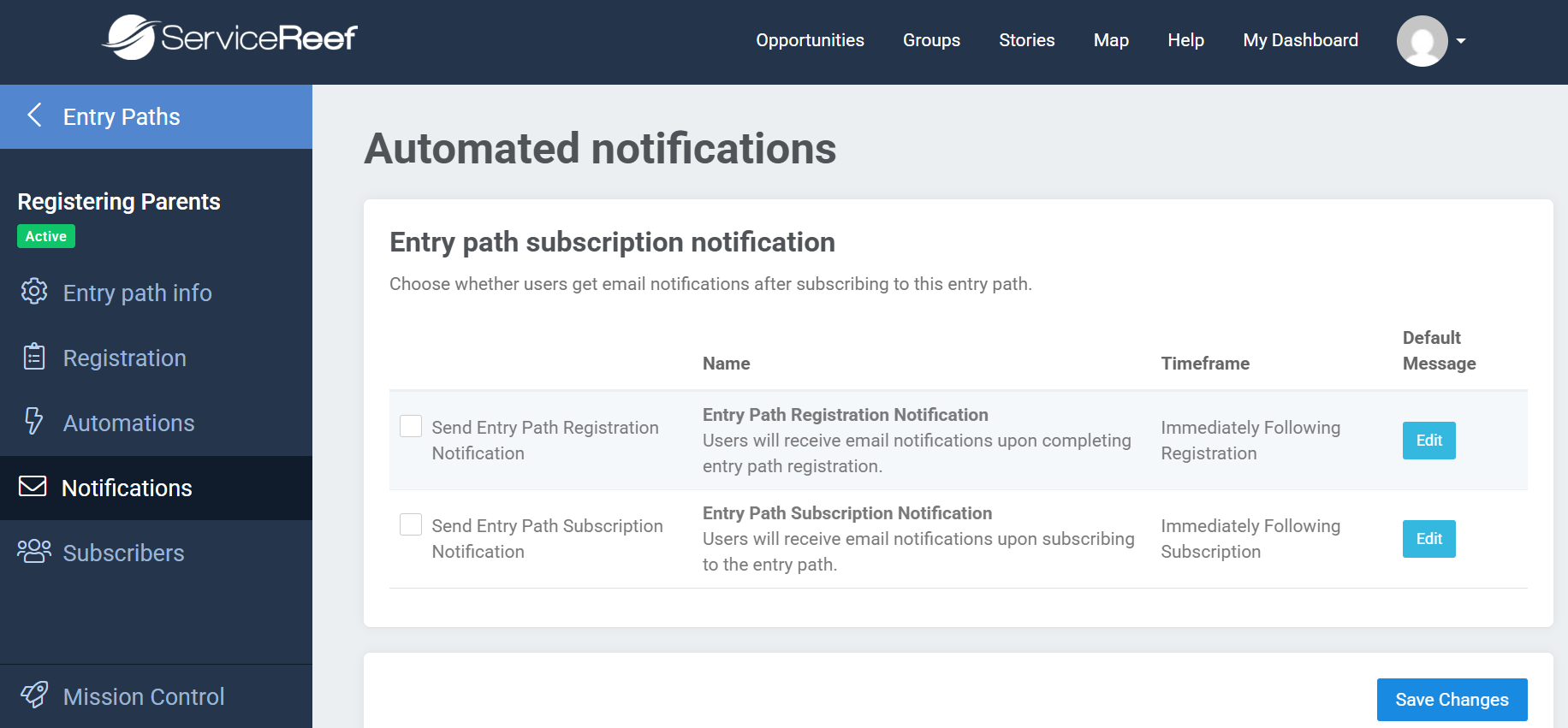
Step 4: Notifications
Two automated email notifications are available for Entry Paths:
- Subscription Notification: Sent when a user begins the Entry Path.
- Registration Notification: Sent when a user completes the Entry Path.
You can turn these off or on using the check boxes.
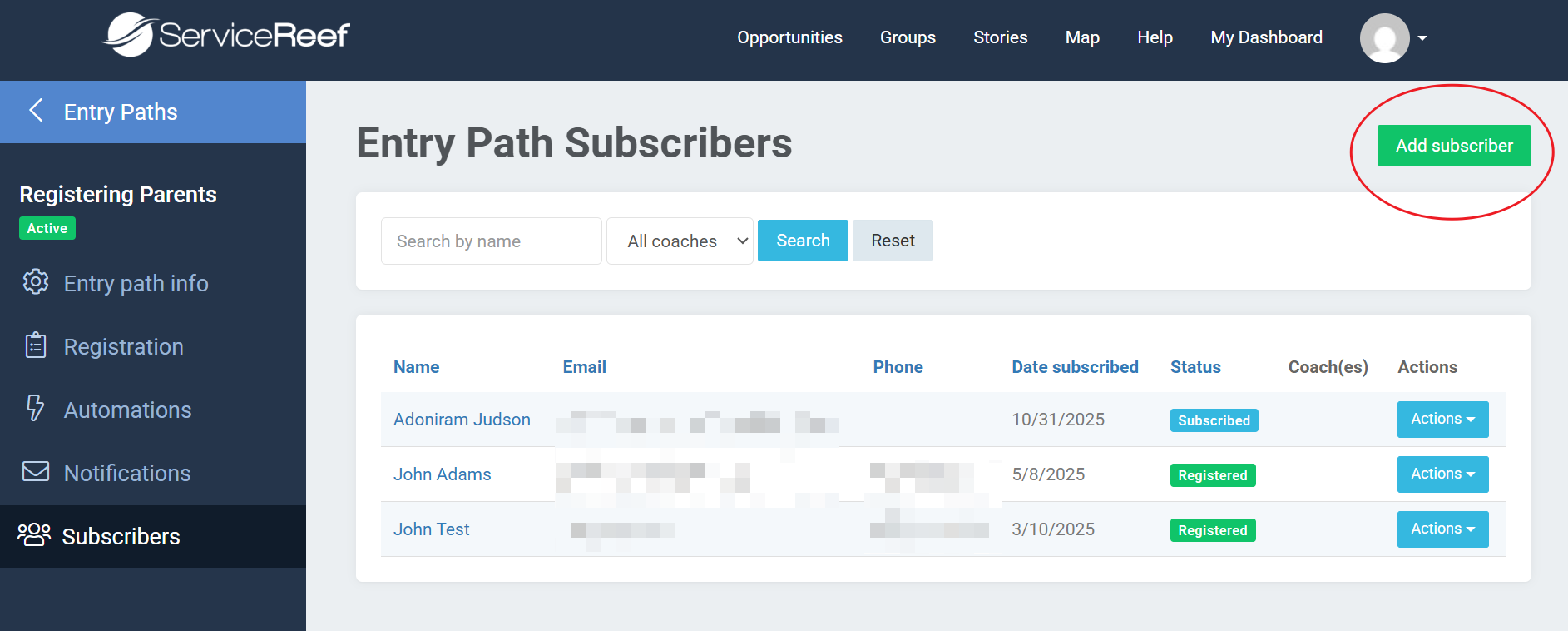
Step 5: Subscribers
Subscribers represent users engaged in your Entry Path. You can view subscriber status here, manually add subscribers who have existing user accounts or remove a subscriber using the Actions button.
Subscriber statuses include:
- Subscribed: The user has started the Entry Path but has not clicked Finish. They can complete all steps, including coach selection, but remain “Subscribed” until they click finish.
- Registered: The user has completed the Entry Path and clicked Finish.
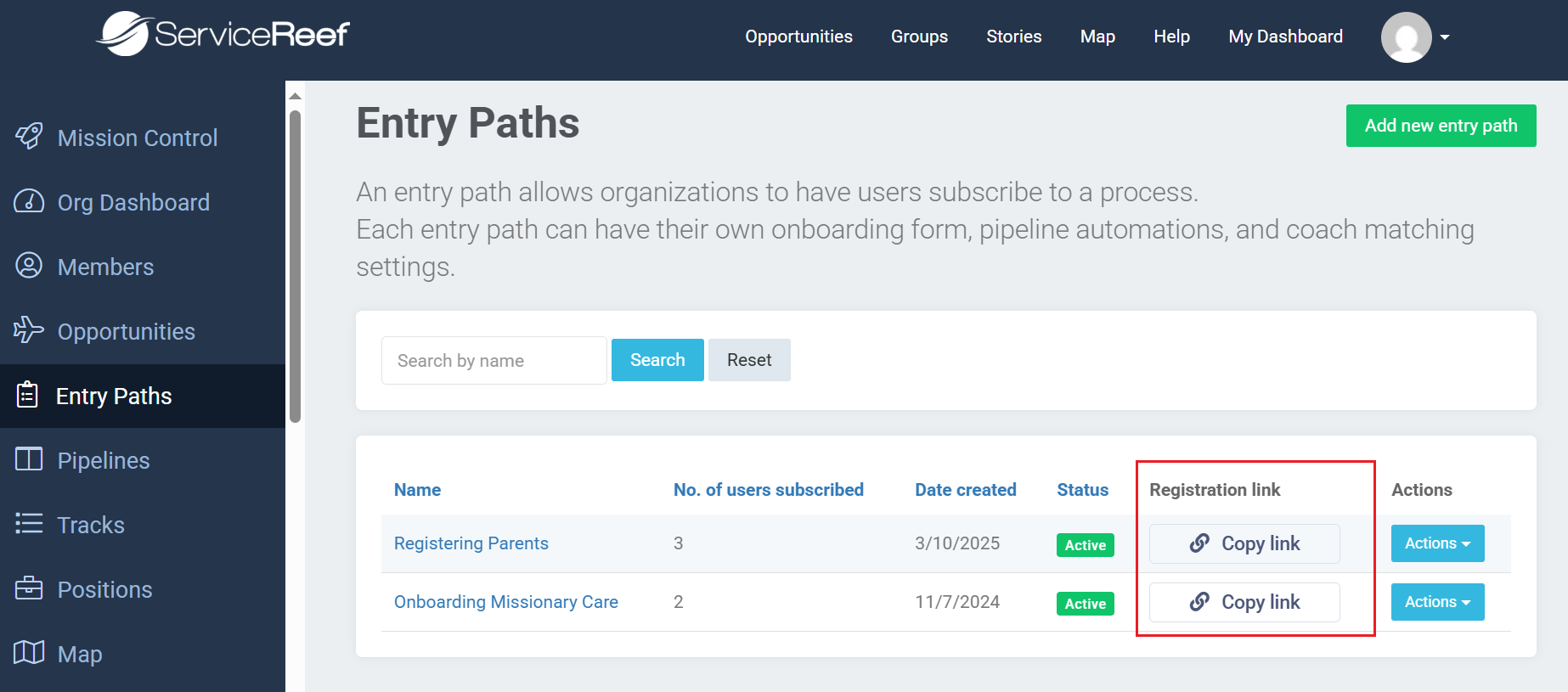
Entry Paths are not publicly listed by default. You can add existing users manually (see above) or share the Entry Path directly:
- Copy the Entry Path link from the management page.
- Send it directly via email or post it on your internal platform.
This helps maintain control over who accesses each onboarding flow.
Coach Matching
If enabled, the final step in an Entry Path may allow users to request a coach:
- Users can browse available coaches (coach bios are encouraged).
- Matching is based on user assessments and missional life categories (it does not currently use Interests or custom tags).
- Users submit a coach request, which notifies the coach by email.
- The coach can accept or decline the connection.
Want to see the user's experience when walking through an Entry Path? See Entry Paths: A Look at the User Experience ›
Use Cases
Entry Paths can be used for:
- Onboarding participants into programs or teams
- Collecting information from alumni, volunteers, or trainees
- Guiding users through assessments or tagging workflows
- Managing coach or mentor intake flows
Consider creating unique Entry Paths for different user types—such as participants and coaches—to ensure clarity and relevance during onboarding.
Coach Onboarding Considerations
Entry Paths do not currently assign coaching roles automatically. Coaches must still be invited manually to your Organization.
However, Entry Paths can still collect important information from prospective coaches, including interests and assessments. Future updates may allow coach roles to be assigned automatically when a user completes a designated “Coach Onboarding” Entry Path.
Known Limitations
- Entry Paths do not assign roles or permissions (such as coach access) by default.
- Matching excludes user Interests—only assessments and missional life categories are used.
- Bios must be manually added as a field if desired.
- Entry Paths are not discoverable publicly; they must be shared manually.
Was this article helpful?
That’s Great!
Thank you for your feedback
Sorry! We couldn't be helpful
Thank you for your feedback
Feedback sent
We appreciate your effort and will try to fix the article