Once your Entry Path is set up, you can see exactly what participants experience as they walk through it—from invitation to completion. This guide walks through each step of the user journey so you can better visualize and test your configuration.
Sharing or Inviting to an Entry Path
There are two ways to invite a user to an Entry Path:
- Existing ServiceReef Users: Add them manually as a subscriber from within the Subscribers section of the Entry Path.
- Copy the Entry Path link from the management page and share it directly via email or your internal platform.
Manually Adding Subscribers
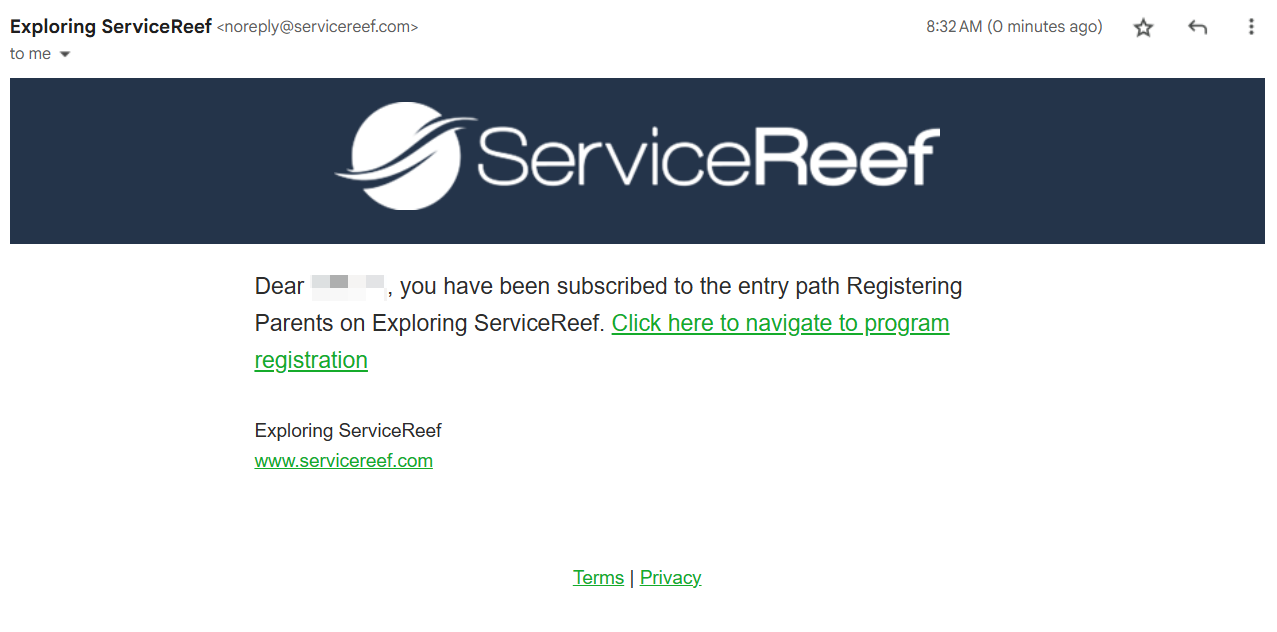
When you manually add a subscriber who already has a ServiceReef account, they’ll receive the Subscriber Notification email. This default message can be turned off or customized based on your organization's communication style.
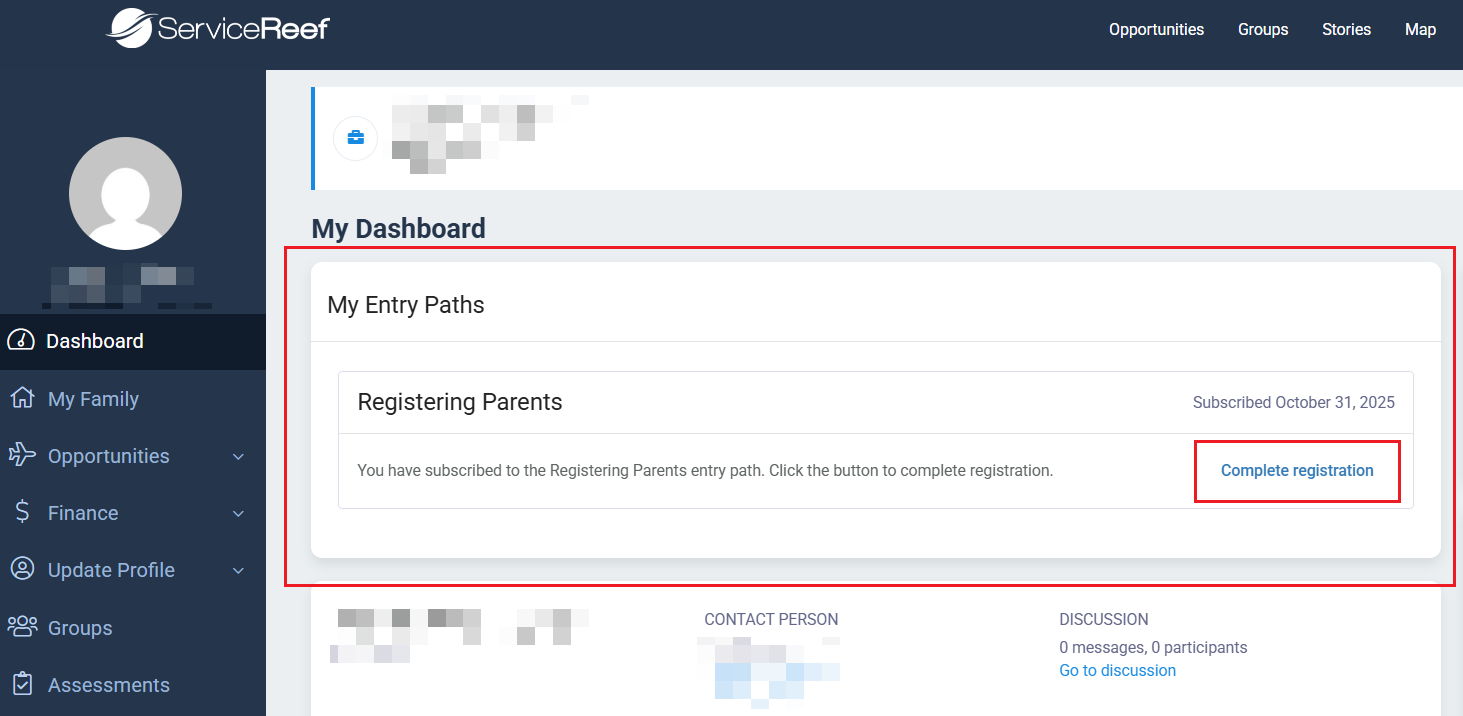
Existing users can also access their Entry Path directly from their dashboard.
Whether a user clicks the Subscribed Notification link or a direct Entry Path link, they'll arrive at the Entry Path Registration.
Entry Path Registration Flow
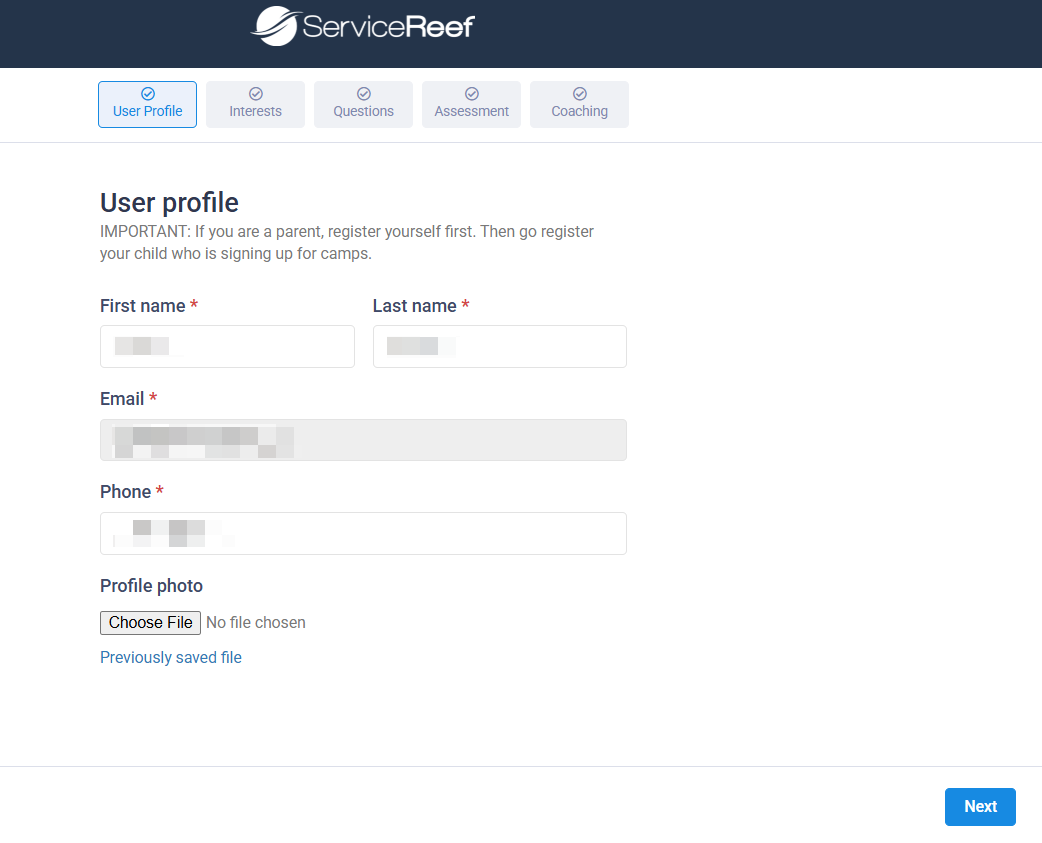
The registration flow mirrors the setup you configured in your Entry Path. Each step below corresponds to a component you can enable or disable—such as profile fields, interests, or coach matching.
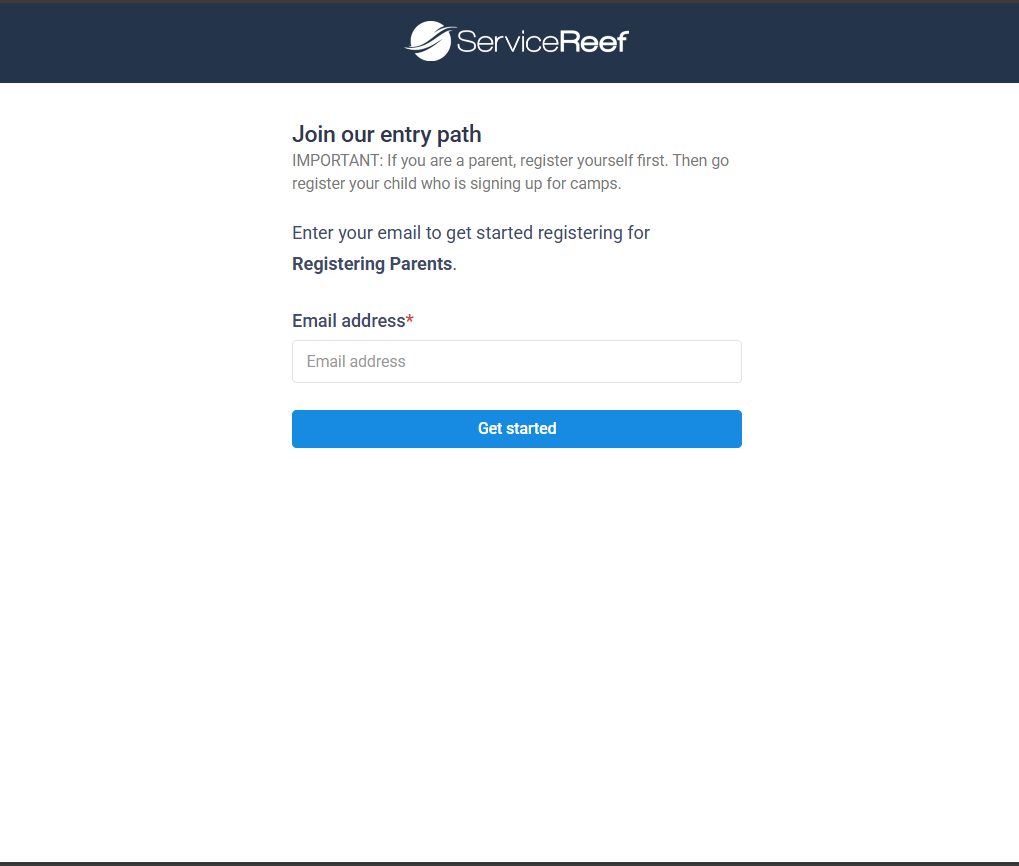 Registration Page |
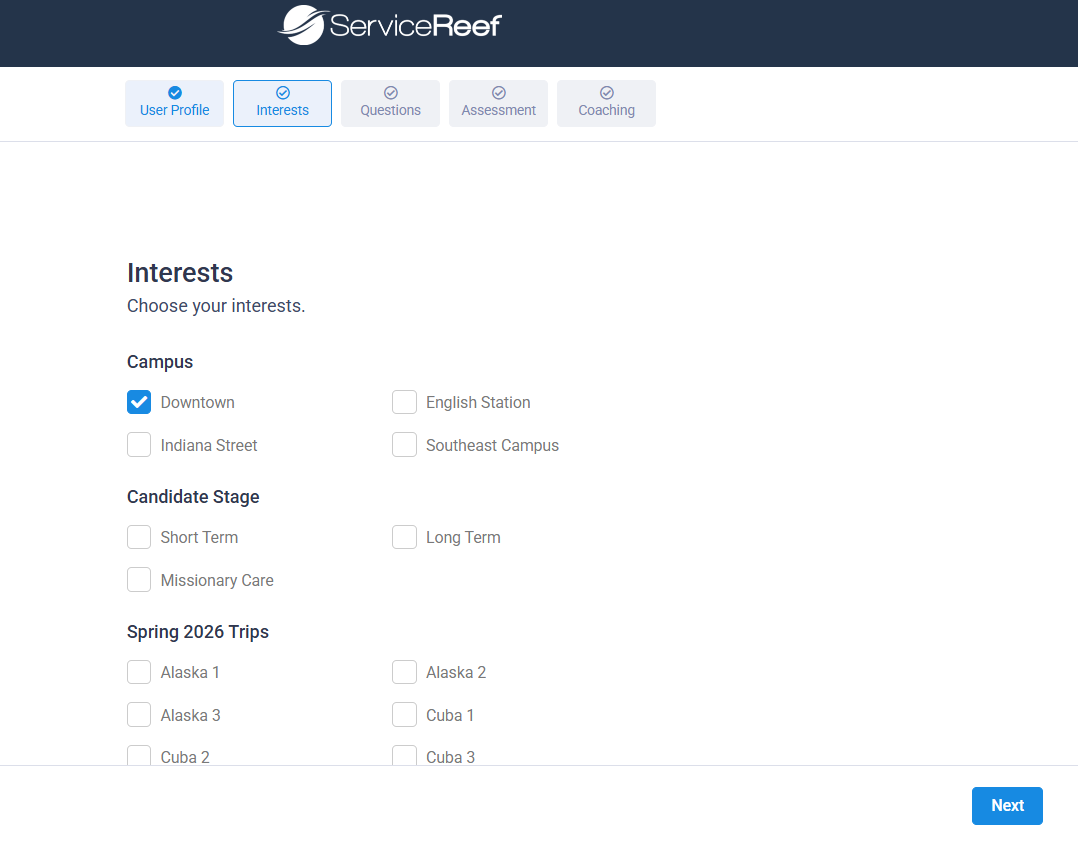 Interests Page | 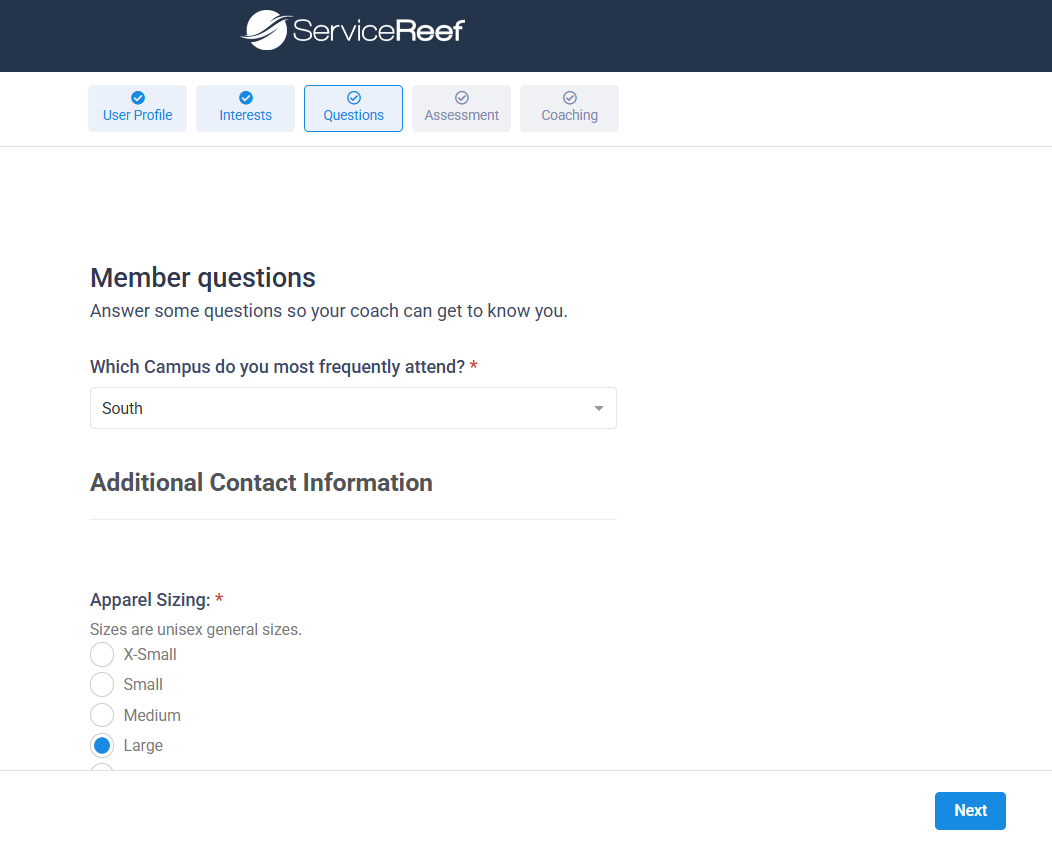 Member Questions Page |
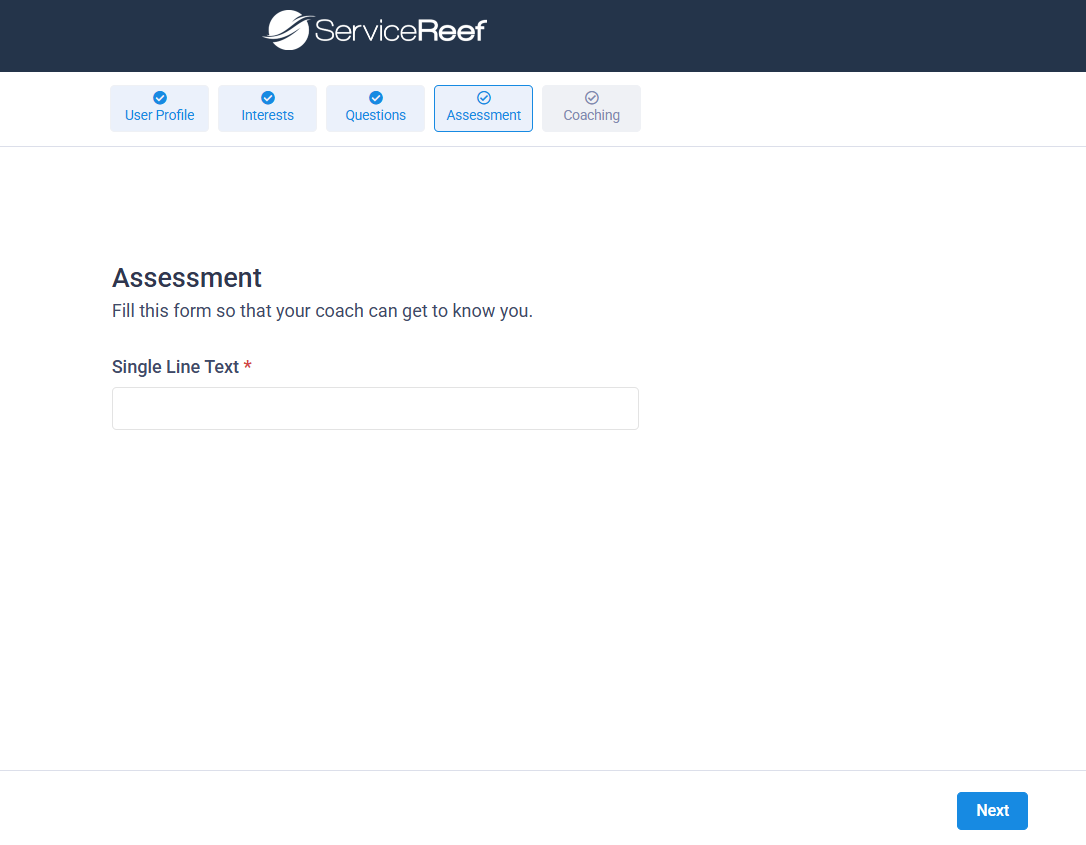 Assessment Page |
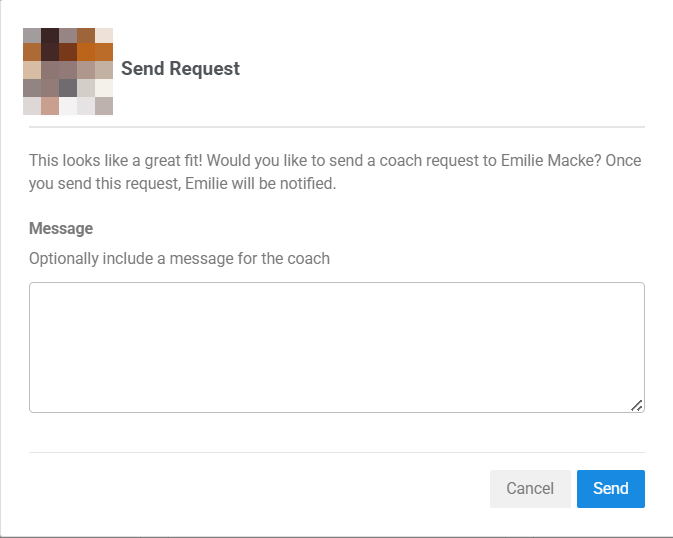
Request a Coach Page |
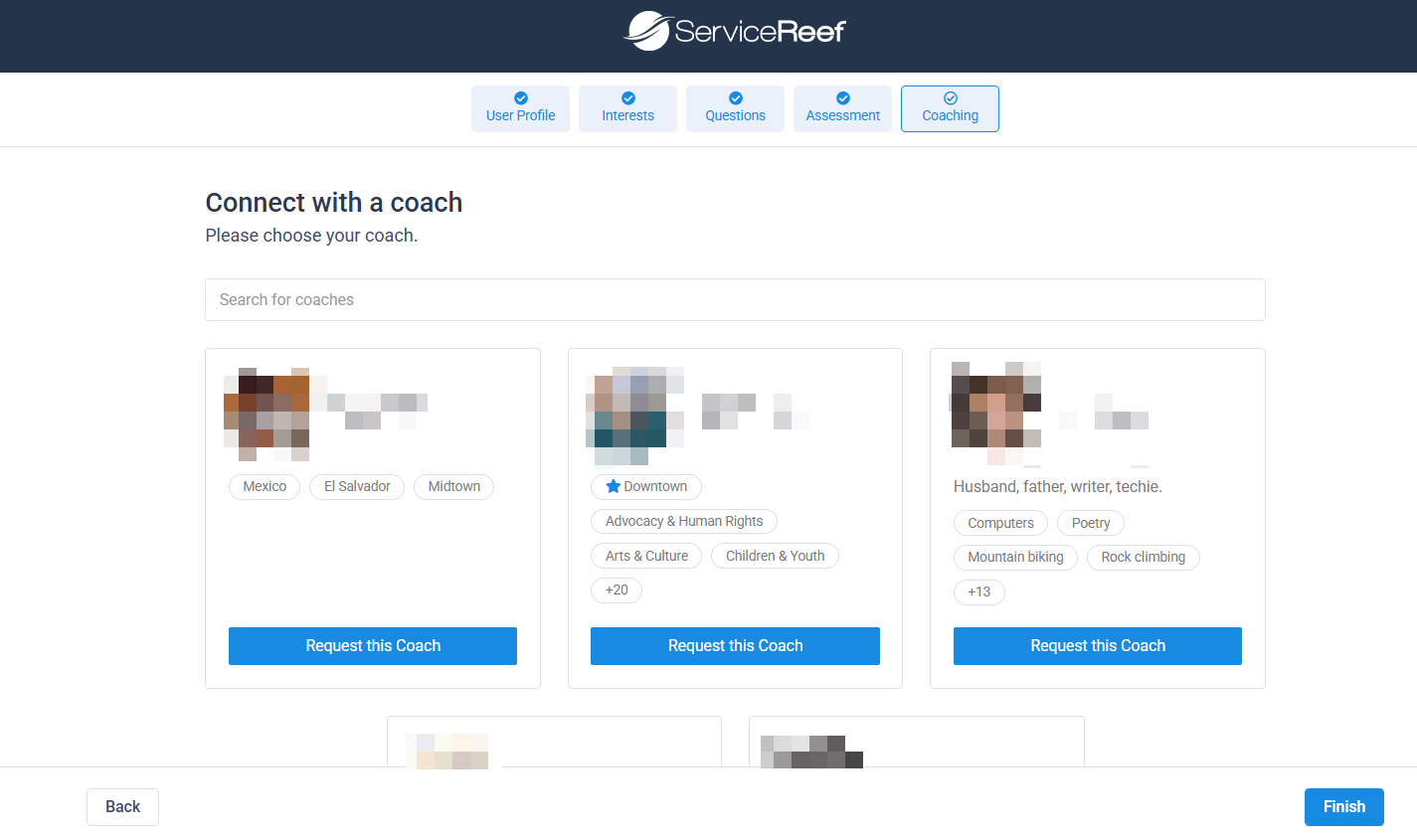
Users can include a message to the coach when submitting their request. |
Completing the Entry Path
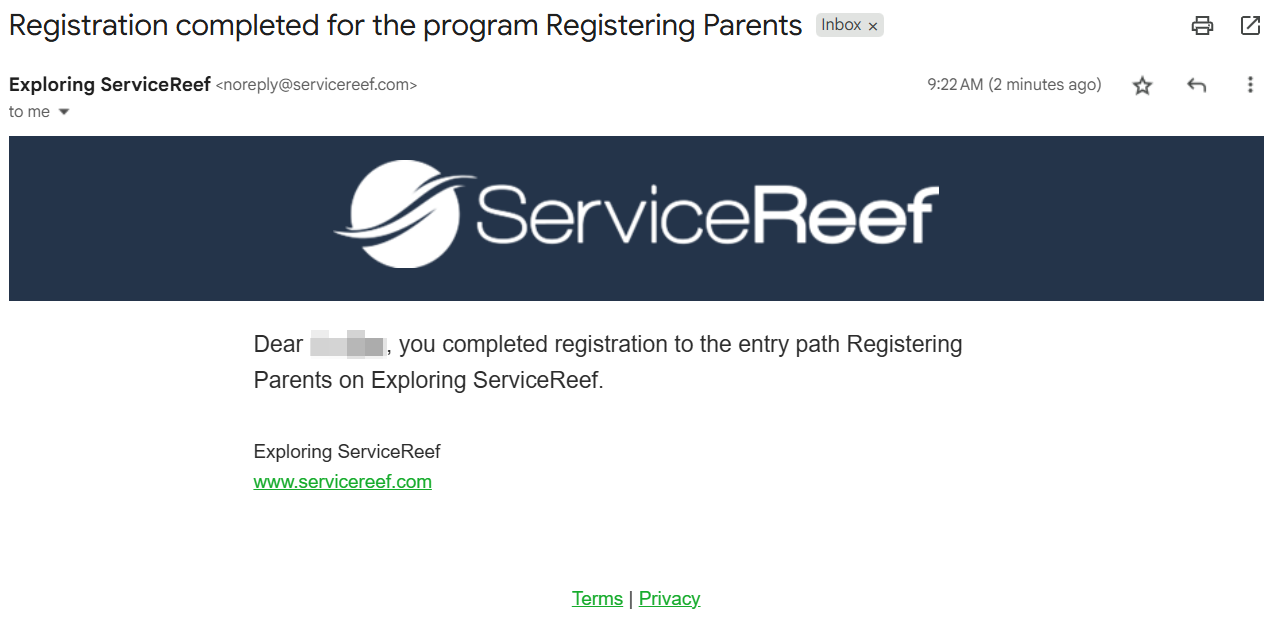
Users must click Finish to complete their Entry Path. Once submitted:
- They are moved into the configured Pipeline (if automations are set).
- They receive the Registered Notification email (if enabled).
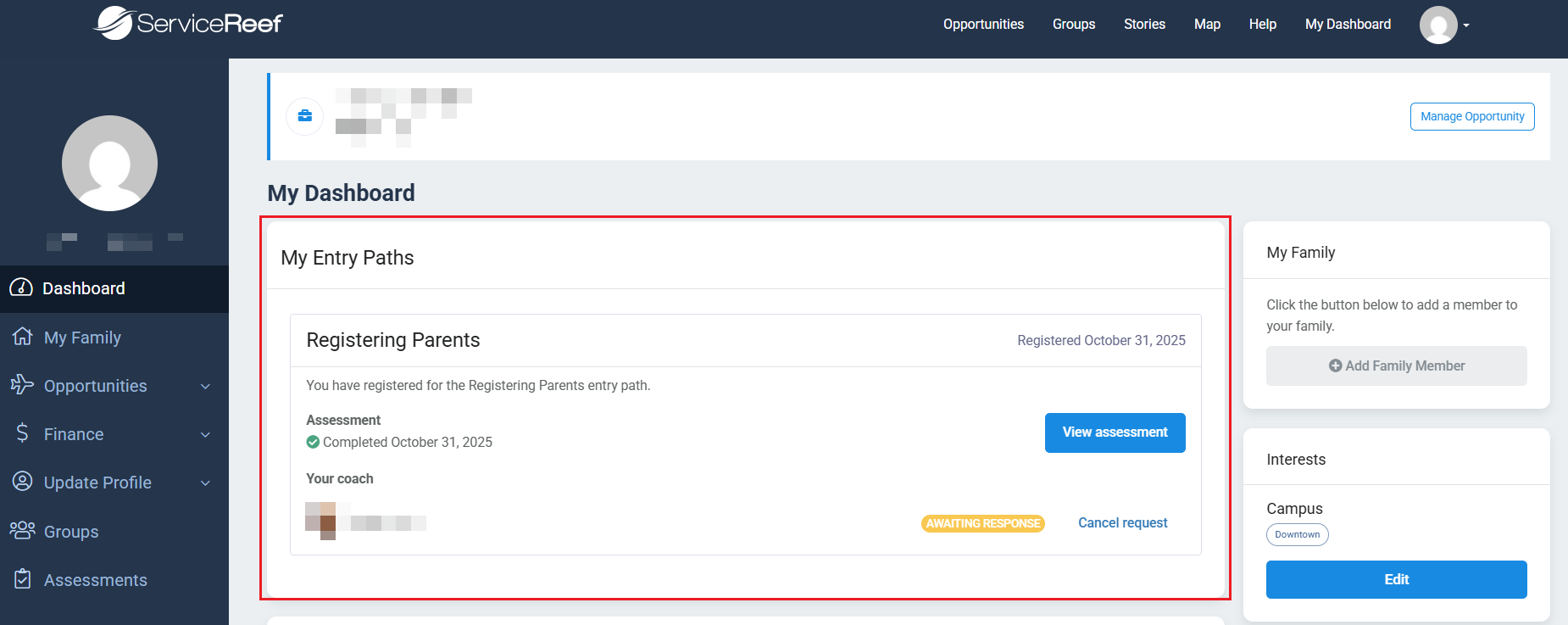
After completion, users can view their assessment results (read-only) and see the status of their coach request.
Summary
Entry Paths create a guided onboarding flow for participants.
Admins can share paths directly or add users manually.
The user experience is customizable based on the steps you configure.
Completion triggers automations, notifications, and optional coach matching.
Was this article helpful?
That’s Great!
Thank you for your feedback
Sorry! We couldn't be helpful
Thank you for your feedback
Feedback sent
We appreciate your effort and will try to fix the article